Requirements
- Unreal Engine 5.8 on Windows x64.
- The Ultimate Deck Building Toolkit plugin, installed separately from its example.
- Visual Studio 2022 with the Unreal C++ workload to compile the source plugin or example project.
This release has been checked with the installed binary UE 5.8 toolchain. Other engine versions and platforms are not currently supported.
Install the plugin
- Install the plugin for UE 5.8 through your Fab library.
- Open your project and enable Ultimate Deck Building Toolkit under Edit > Plugins. Restart when prompted.
- For a manually supplied source package, place its complete
UltimateDeckToolkitfolder atYourProject/Plugins/UltimateDeckToolkit, then build Development Editor with the editor closed.
Try the editor tools
- Open Tools > Deck Workbench in the Deck Building section.
- Use the 20 built-in cards, seed 42, five-card opening hand, three energy and ten-card hand limit.
- Select a card, click Queue and use Step effect to inspect its resolution.
- Open Tools > Deck Workshop Preview to try collection search and deck editing.
Built-in workbench cards and the workshop preview are transient. Use saved Data Assets for durable card authoring, and the persistent example below for saved deck compositions.
Download and compile the example
The example ZIP contains only the example project source and configuration. It depends on the separately installed plugin.
- Extract to a short writable path, such as
C:/Examples/DeckToolkitExample. - Install the plugin for UE 5.8, or place a separately obtained source copy in the example's
Plugins/UltimateDeckToolkitfolder. - Build
DeckToolkitValidationEditorin Development Editor. - Open
DeckToolkitValidation.uprojectand choose Play Standalone.
& 'C:/Program Files/Epic Games/UE_5.8/Engine/Build/BatchFiles/Build.bat' DeckToolkitValidationEditor Win64 Development '-Project=C:/Examples/DeckToolkitExample/DeckToolkitValidation.uproject' -WaitMutexEdit, equip, play
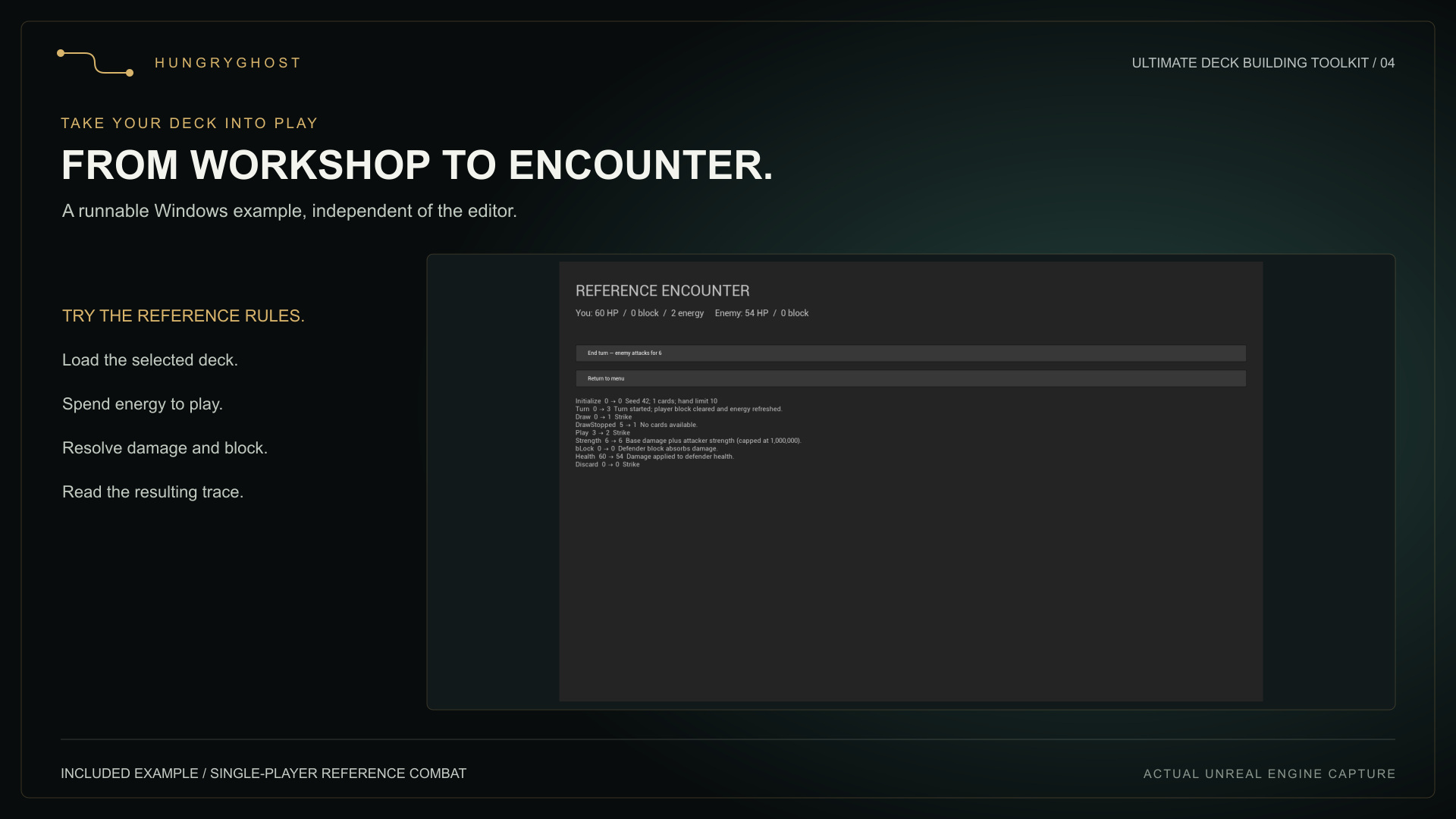
Select a named deck, add owned cards and choose Use this deck. Close the workshop, then select Play active deck. The example starts a reference encounter with seed 42, 60 health for each combatant, three energy and five drawn cards per turn. Enemy attacks deal six base damage.
The example saves compositions in Saved/DeckToolkit/DemoDecks.json. Close and reopen the application to verify that deck names, contents and active selection survive. Combat state is not saved.
Controls
In the workshop, use Tab/arrow keys or D-pad to navigate, Enter/gamepad A to activate, and Escape/gamepad B to close. The example also presents clickable controls. Keyboard and simulated gamepad events have been checked; physical-controller acceptance has not been verified.
Package your own game
Enable the plugin in your project and use the normal Unreal Windows packaging workflow. Keep card/deck assets referenced by your cooked project or explicitly manage them in your asset-loading policy. The Editor module is omitted from game builds; the Runtime and UI modules remain available. Test your collection mappings and saves in the packaged application.